

When several people make videos for the same business, they drift. One person puts the logo top left, someone else uses a slightly different blue, and a third picks a font that's close but not quite right. Viewers notice, even if they couldn't tell you what's wrong.
This post covers the decisions to make in your video brand guidelines, then how each person on your team can set the visual ones up in VideoScribe's Brand Kit, so the right colors, fonts and logo are ready in every new project.
What to agree in your video brand guidelines
Fonts. Your brand typefaces may work well on screen, or you may need an extra one for video. Say which font is for headings and which is for body text, and how large text needs to be to read on a phone. Our post on why fonts matter in video goes into more detail.
Colors. Your video palette will usually match your brand palette, but spell it out with hex codes. Cover backgrounds, text and highlight colors.
Logo. Decide where it goes and when. A small logo in a corner throughout? A logo at the start and end only? Short social clips can usually carry lighter branding than a full explainer.
Visual style. Whiteboard, hand-drawn color, or a mix? Give people guidance on the kind of images to choose, and remind them to show a range of people.
Tone of voice. Is humor fine? First person or third? List any spellings and product names people regularly get wrong.
Voiceover and music. Who voices your videos, and is there a style of music you always use, or never use?
Calls to action. Where does the CTA appear, and is it on screen, in the voiceover or both?
Captions. Most social video is watched with the sound off. Agree on one caption style and use it every time.
Setting up Brand Kit in VideoScribe
Brand Kit holds your visual guidelines inside VideoScribe, so you don't have to look them up every time. You'll find it in the Brand Kit tab on the Projects screen, or in Settings. It's available on the Max plan.
Brand Kit is set up per account. If several people make videos for your business, each of them sets up Brand Kit on their own account, using the colors, fonts and logo from your guidelines. That's where the guidelines earn their keep: everyone enters the same hex codes and fonts, so their videos match.
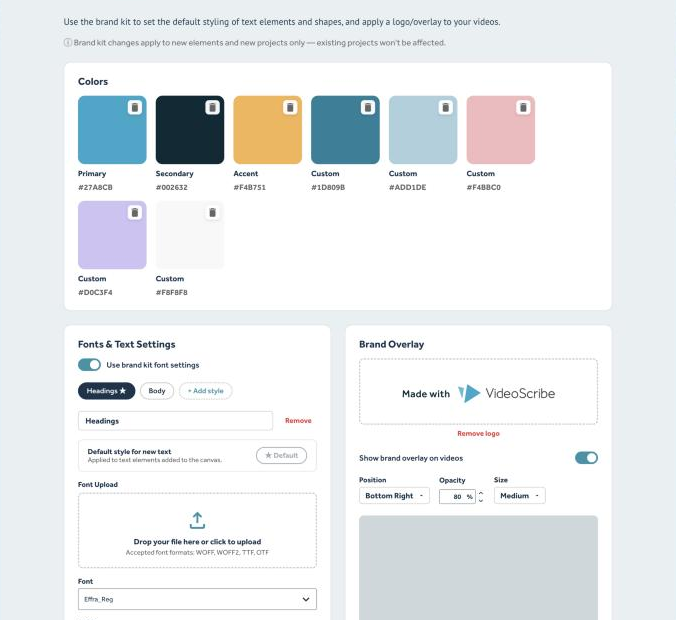
- Brand colors. Add up to eight. They appear as their own row at the top of every color picker, scene backgrounds included, so the right blue is always one click away.
- Text styles. Set your fonts, sizes and colors once and new text picks them up automatically. Text styles apply to text elements, not shapes.
- Brand Overlay. Upload your logo once and it's added to your videos when you preview and download them. You won't see it on the canvas while you edit, which keeps your workspace clear.
Tip: add a Brand Kit box to your guidelines. At the end of your video brand guidelines, list exactly what goes into Brand Kit: your eight brand colors as hex codes, the font, size and color for headings and body text, and a link to the logo file to use for Brand Overlay. Anyone setting up their account can copy the values straight in, rather than picking a blue that's nearly right.
Brand Kit applies to new elements and new projects, so existing videos keep the styling they already have. It's worth setting it up before you start your next video.
Start from a template
Once your guidelines are set, templates speed things up. Pick one that fits the kind of video you're making, then bring in your brand colors and text styles. This whiteboard explainer is a good place to start, and our guide to customizing VideoScribe templates walks through the rest.
Use the Whiteboard Explainer template →
If your content is complicated, these six video structures help you choose a shape before you start, and our storytelling techniques work just as well on screen. To place your logo or product shots cleanly on a background, see how to remove the white background from an image.







COMMENTS